Your first launch
Tell Teserra what you keep, and it finds it on your Mac: screenshots, your Eagle library, any folder. It counts before copying, and your originals stay where they are.
Written from Teserra 1.3.16 · Markdown ·
In short
- Open Teserra, tick what you keep, then Look on this Mac.
- Keep the sources you want, then Add N to my library.
- Already have a library on another Mac? I already use Teserra.
1. What do you keep? New in 1.3.19
Tick what you collect: Interfaces, Moodboards, Type and brand, Photography, Links and articles or A bit of everything. If you build with Claude Code, Cursor or Codex, tick I use Claude Code, Cursor or Codex; it is optional, and Agent access stays off until you turn it on in Settings. The preview on the right reacts to your picks with sample images, and the search you would type for them.
Then:
- Look on this Mac goes to the next screen. Nothing is created yet.
- I already use Teserra opens your library from another Mac, see below.
- Skip creates an empty library in ~/Pictures/Teserra and opens it.
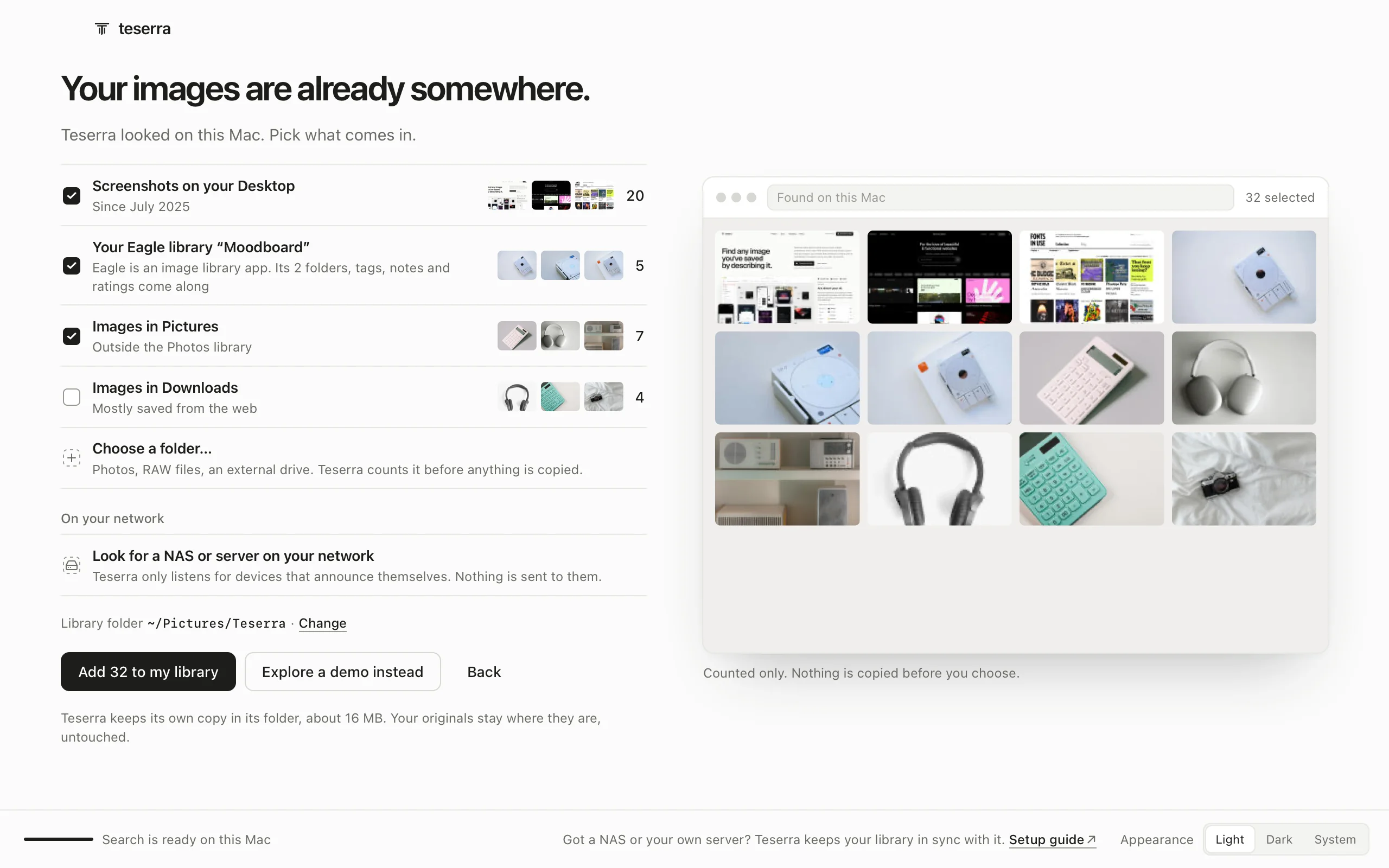
2. Your images are already somewhere.
Teserra looks on this Mac and counts. Nothing is copied before you choose. It shows each place it found, with the number of files and three of the latest:
- Screenshots on your Desktop, or in the folder macOS saves them to. Ticked.
- Your Eagle library, by name, with its folders. Ticked. What comes over is in Switching from Eagle.
- Images in Pictures, outside the Photos library, and Images in Downloads. Not ticked: tick them if you want them.
Choose a folder… adds any other folder: photos, RAW files, an external drive. Teserra counts it before anything is copied. Under On your network, Look for a NAS or server on your network only searches when you click it, and only listens for devices that announce themselves; to connect one, use Settings›Sync once the library is open.
Library folder shows where the library will live, ~/Pictures/Teserra by default; Change picks another folder, an external drive for instance. Then Add N to my library, where N is what you ticked. Teserra keeps its own copy in its folder and says how much room it takes; your originals stay where they are, untouched.
Nothing to bring? Explore the demo adds a small demo library, marked Demo and gone in one click, or Start empty.
3. I already use Teserra
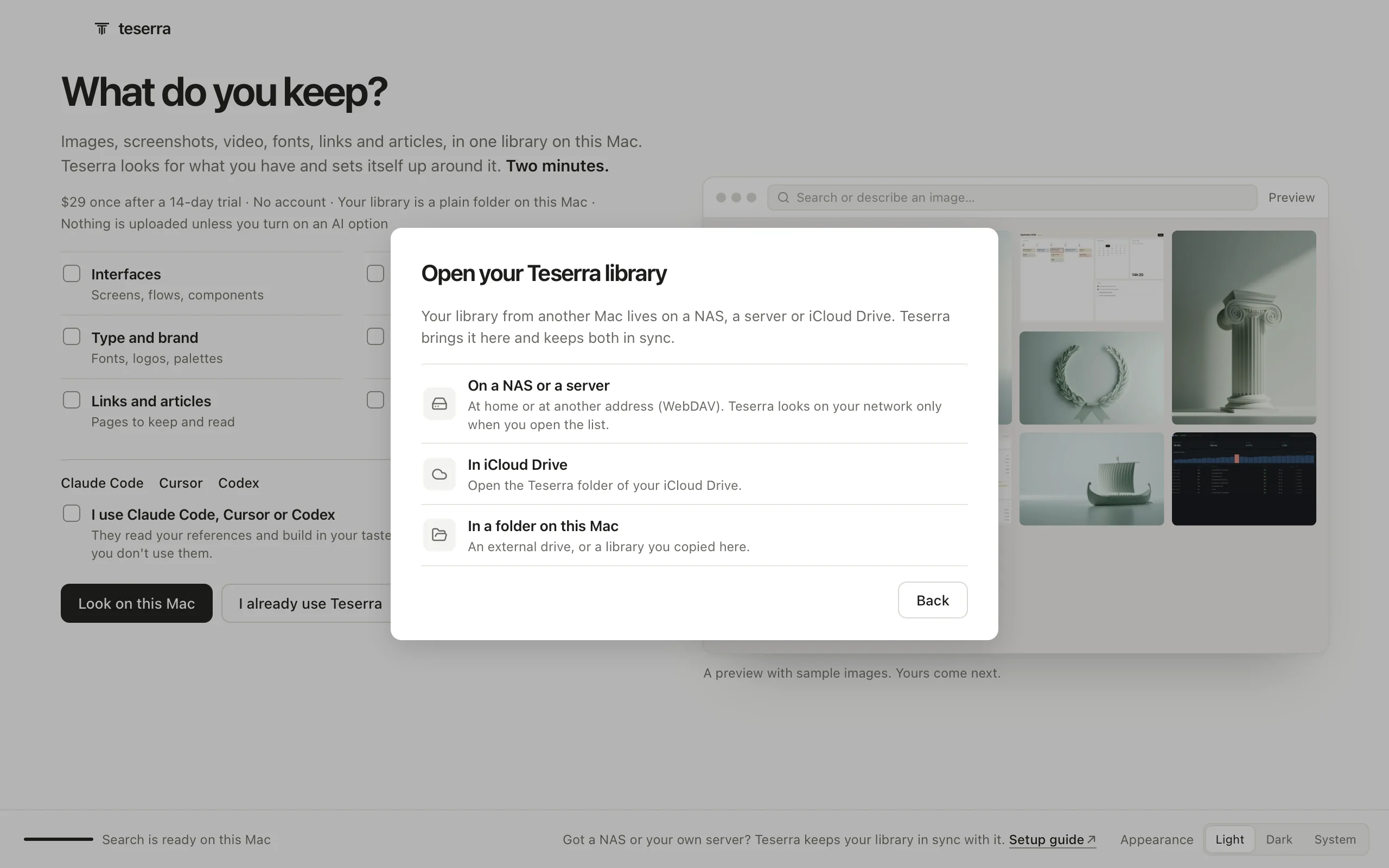
For a library you already have on another Mac. Open your Teserra library offers three places:
- On a NAS or a server. The same list as Settings›Sync: devices found on your network first, then Your own server, Synology, QNAP, Nextcloud, Hetzner Storage Box, pCloud, Koofr, kDrive and Another WebDAV server. Sign in with your server's account; the password stays in this Mac's Keychain. When the server already holds your library, the button reads Use “Studio”, with its name, and Teserra brings it here and keeps both in sync. Sync with your server or NAS
- In iCloud Drive. Open the Teserra folder of your iCloud Drive.
- In a folder on this Mac. An external drive, or a library you copied here.
At the foot of every screen
- Search. The small model that lets you search by describing downloads from the first screen: Preparing search on this Mac · 290 MB, once, then Search is ready on this Mac. It runs on your Mac and works offline. Search by name, tag and collection works without it.
- Got a NAS or your own server? Setup guide explains how Teserra keeps your library in sync with it.
- Appearance: Light, Dark or System. Light at first launch; change it any time in Settings.
Then
A card at the bottom right, Preparing your library, covers the copy, the thumbnails and the search index, then reads Your library is ready. Search works as soon as it is done.
Everything else is on from the start: Links, Articles, Visual search and the Curator, in Settings›Add-ons, where you turn off what you will not use. Agent access stays off until you turn it on.
The first time you press ⌘⇧M, Teserra asks macOS for the Screen Recording permission (“Screen & System Audio Recording” on macOS 15): Allow in System Settings, then Relaunch Teserra if macOS asks for it.
A new vault you create later, from the vault menu at the foot of the sidebar, opens on the same welcome.