Should work
Synology
Install the WebDAV Server package. At home: http://nas.local:5005/teserra.
- Setup
- About 10 min
- Away from home
- Tailscale, or remote access
- Your files
- Your NAS
The library
How it worksWhere to find picturesThe libraryTeserra for iPhonebetaBrowser extensionSync and storageWith your AI coding tool · optional
Art-direct your AISetup for Claude Code, Cursor, CodexReady-made commandsNext to Claude Design and Mobbin
New in 1.3.19
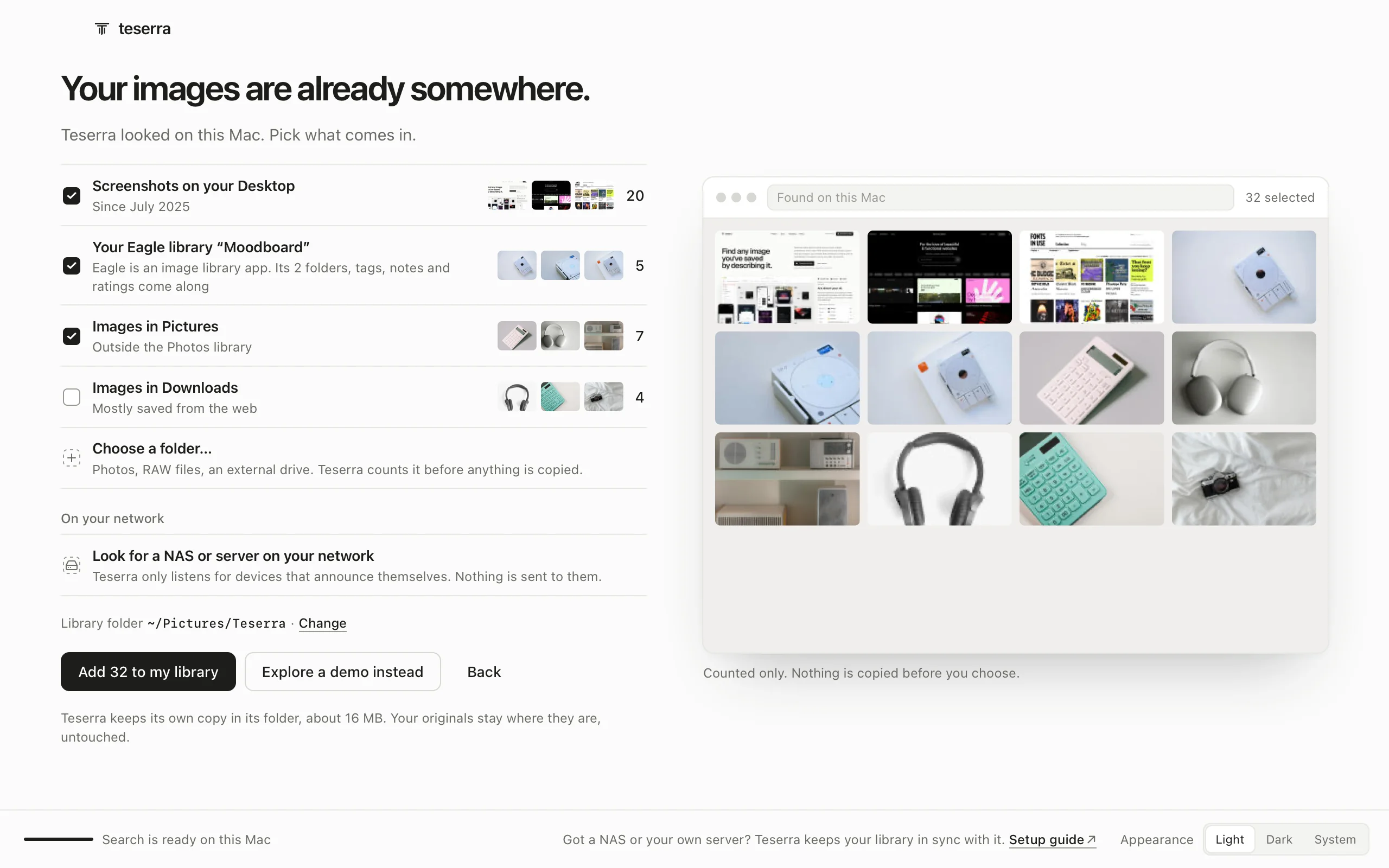 A new first launch2 November 2026
More
Your first launchAdding thingsFinding thingsThings to ask your agentKeyboard shortcutsLicense and MacsSearch
Search the docs ⌘KPaste what Teserra says on screen: the docs find the page that explains it.
Ask a person on SupportYour library is a folder. Keep it on your Mac, in iCloud, on your NAS or your own server, and Teserra keeps your Macs and your iPhone in sync. No Teserra cloud.
Pick it at first launch
A NAS or a server at home
Works from anywhere
No WebDAV, or still planned
Tested end to endThe others speak standard WebDAV and should work; not yet in our tests
14-day free trial, then $29 once · Apple silicon, macOS 12+ · sync included
No Teserra cloud in between
Choose your NAS, your storage or your own server: Teserra fills in the address and shows where to turn WebDAV on. A NAS on your home network shows up by itself. Test connection tells you what the folder holds before Teserra writes anything. At first launch, or any time in Settings → Sync.
Sync, step by step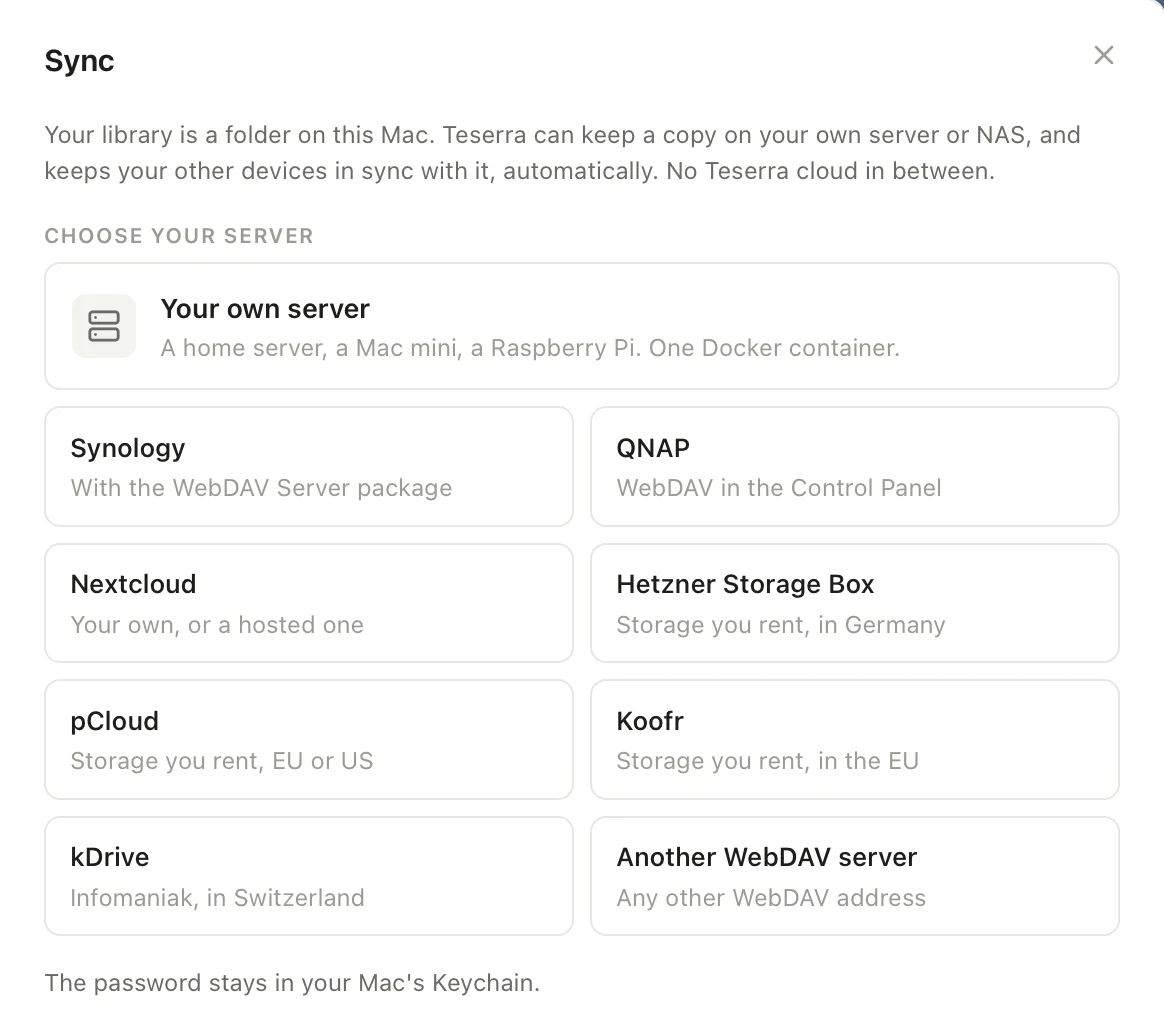
A MacBook that leaves home needs an https address. Each Mac uses the one that answers, home first. Rented storage already works from anywhere.
http://nas.local:5005/teserrayour networkhttps://nas.tail1234.ts.net/teserra TailscaleA short assistant in Settings → Sync sets up Tailscale or your own address. A NAS that ships with its own certificate connects once you trust its fingerprint; if it ever changes, sync stops and says so.
Install the WebDAV Server package. At home: http://nas.local:5005/teserra.
Turn on WebDAV in the NAS settings and use the address it shows.
One Docker container running rclone serve webdav.
Copy the WebDAV address from Files → Settings, use an app password.
Turn on WebDAV in the Hetzner Console. A few euros a month for 1 TB.
WebDAV works on every pCloud plan.
Needs an app password.
Paid plans only, with an app password.
What syncs: your files, tags, collections, notes, ratings and the trash. Search data is rebuilt on each Mac.
No. This Mac only and iCloud Drive need nothing at all. A server or a NAS is for people who already have one.
No. Sync is part of Teserra, with no extra plan and no subscription.
When the address starts with https, everything that travels is encrypted. End-to-end encryption is planned.
Teserra keeps working. Your changes stay on your Mac and are sent as soon as the NAS is back.
Any time, in Settings → Sync. Disconnect deletes nothing.
Keep your library where you want it.