Browser extension
Teserra Clipper saves images, videos, pages and articles from your browser into the app running on your Mac. Chrome and every Chromium browser, Firefox and Safari. One code, one token, nothing sent to a server.
Written from Teserra 1.3.16 · Markdown ·
In short
- Install the extension for your browser. In Safari, it comes with Teserra.
- In Settings›Browser, Copy pairing token, paste it in the extension and Connect.
- Hold ⌥ and click any image or video on a page.
Install
| Browser | Where | Notes |
|---|---|---|
| Chrome, Arc, Brave, Edge, Vivaldi, Opera, Dia | Chrome Web Store | One listing for every Chromium browser. Open the link from the browser you want it in. Auto-updates. |
| Firefox | addons.mozilla.org | Available. Auto-updates. |
| Safari | Inside Teserra | Included since Teserra 1.3.2. Open Teserra once, then Safari → Settings → Extensions → turn on Teserra Clipper. Nothing to download separately, it updates with the app. |
Not covered: mobile browsers, which take no desktop extensions. On an iPhone, the share sheet of Teserra for iPhone does the same job.
Connect
- In Teserra, open Settings (⌘,) → Browser and click Copy pairing token. The button shows when Links or Articles is on. The token is the only thing that lets the extension talk to your library.
- Click the extension's icon: the popup opens on Connect to your library. Paste the token, leave the port at
8788, Connect. The same fields are in the extension's Options (right-click the icon). - Your browser asks once for access to all sites. Accept: this is what lets Quick save work on every page. The extension still sends to your Mac only. Safari asks the first time you use it; allow it for every website in Safari → Settings → Extensions.
Settings → Browser
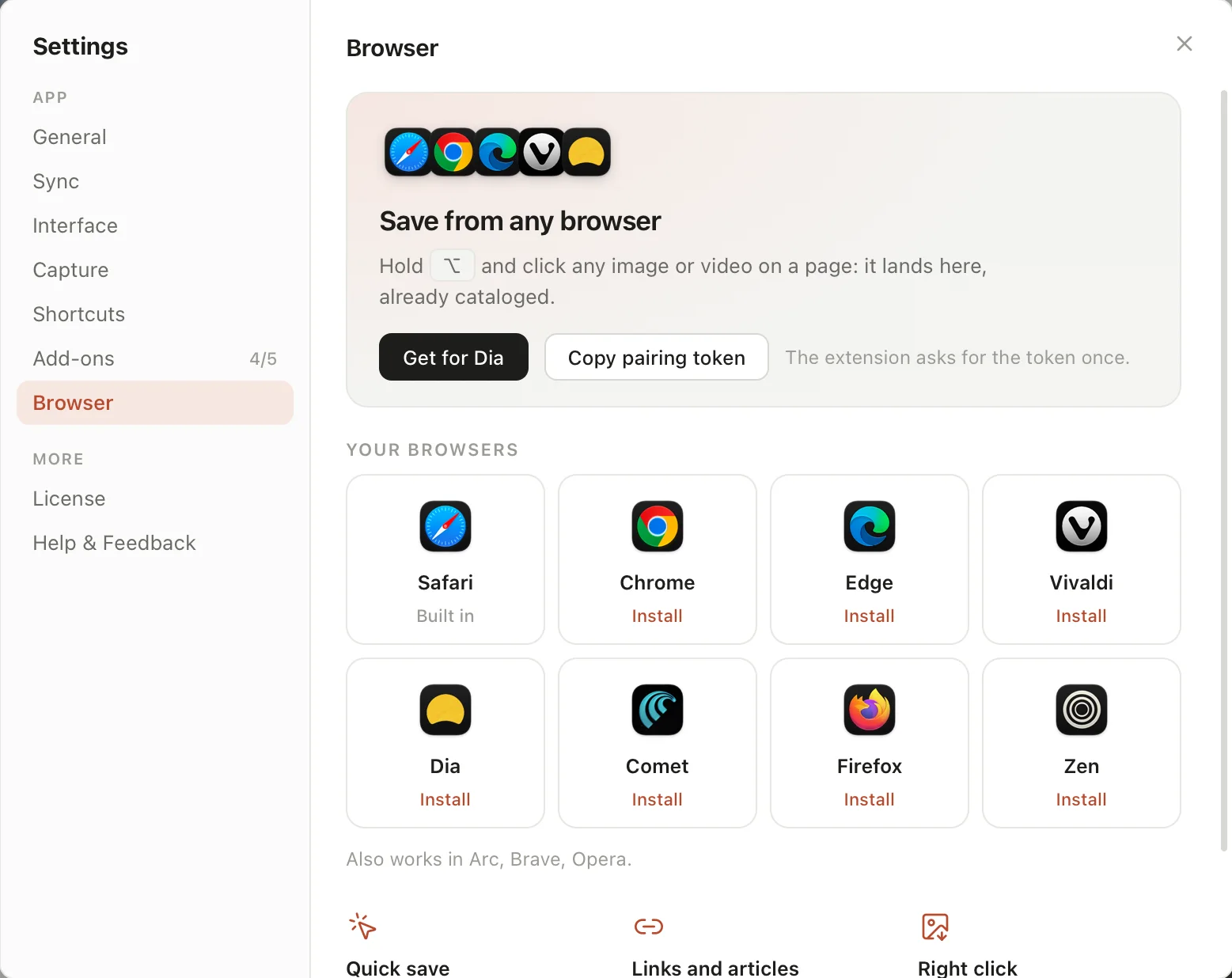
The Browser tab shows the browsers installed on your Mac with their icon and their state: Connected when the extension has talked to Teserra from that browser in the last seven days, Install with a button to its store otherwise, Built in for Safari. Below, the browsers that also work but are not installed. Once a browser is paired, the tab says so.
127.0.0.1:8788, a server the app runs on your Mac only. Quit Teserra and the extension shows a clear error until you open it again.Quick save: Option-click anything
Hold ⌥ and move over a page: the image or video under the cursor gets a frame and a label, “Save image to Teserra” or “Save video to Teserra”. Click, and it is in your library with the page as its source. A toast in the page confirms: “Saved to Teserra”.
What it catches
- Images, including images inside links and CSS background images (a Pinterest board, an Are.na channel, a shop grid).
- Video files served directly (a
.mp4in a page). Up to 100 MB. - Tweet videos: open the post on X, then Option-click its video, and Teserra resolves the MP4 itself. From the timeline, the toast says the video is streamed.
What it refuses, and says so
- Streams: a YouTube, Vimeo or Instagram player is a stream, not a file. The toast says “This video is streamed and cannot be saved”. Save the page as a link instead.
- Videos over 100 MB: “This video is over 100 MB”.
Options
- Quick save on or off. On by default. Off returns the site permission to the browser; the popup and the right-click menu keep working.
- Modifier: ⌥ by default. Option-click on a link normally downloads it; on an image or a video, Teserra takes the click. Pick ⌥⇧ if you rely on the browser's Option-click download.
- Option-click on a link with no media keeps the browser's behavior.
The popup: Save as Image, Link or Article
Click the extension icon. A preview of the page appears with three ways to save it.
- Image. A screenshot of the visible tab, or the page's share image (the one social networks show). Toggle between the two on the preview.
- Link. A card with preview, favicon, title and site. In Teserra, ↵ opens it in the browser and Space peeks at the live page in a Teserra window. Dead links get a badge later.
- Article. The readable text of the page, extracted and kept as clean Markdown, readable offline in Teserra's reading view and searchable. X posts work too, and their videos are saved locally.
Below the modes: Title (prefilled), Note, Tags (autocompleted from your library after three characters), Collection (your collections, A to Z). Then Save to Teserra or ⌘↩. The item appears in the grid instantly, and the Curator catalogs it if auto-curation is on.
Appearance: light by default like Teserra, dark, or follow macOS, in the options.
Right click: Send image to Teserra
On any image, right-click → Send image to Teserra. The extension reads the image from the page itself, up to 25 MB, so images that refuse hotlinking still come through; failing that, the app downloads it with the page as referer. A badge on the icon confirms, plus a system notification in Chrome and Firefox. Safari shows the badge only. This is the way to go if you keep Quick save off.
Per browser
| Chrome and Chromium | Firefox | Safari | |
|---|---|---|---|
| Install | Chrome Web Store | addons.mozilla.org | Inside Teserra |
| Site access for Quick save | Asked once when you save the token | Asked once when you save the token; nothing granted at install | Set in Safari → Settings → Extensions |
| Quick save switch | Options | Options | Options; the script stays installed and goes quiet |
| Notifications | System notification | System notification | Badge and in-page toast |
| Updates | Automatic from the store | Automatic from the store | With each Teserra update |
If an add-on is off
Links and Articles are add-ons in Teserra. If one is switched off, the extension tells you (“Links is turned off in Teserra”) instead of failing silently. Turn it back on in Settings → Add-ons.
Privacy, in one paragraph
The extension talks to one address, 127.0.0.1:8788, your own Mac, with the token you pasted. It reads a page only when you act: a click on the icon, a right-click, an Option-click. It collects nothing, sends nothing to us or to anyone else. The privacy policy says the same in longer words.